

Join a Meeting from Moodle
Log in to the Virtual Campus and navigate to your course. In the left side panel, locate the module corresponding to your session. Click on the module to expand its content and view the available activities, including scheduled Zoom sessions.
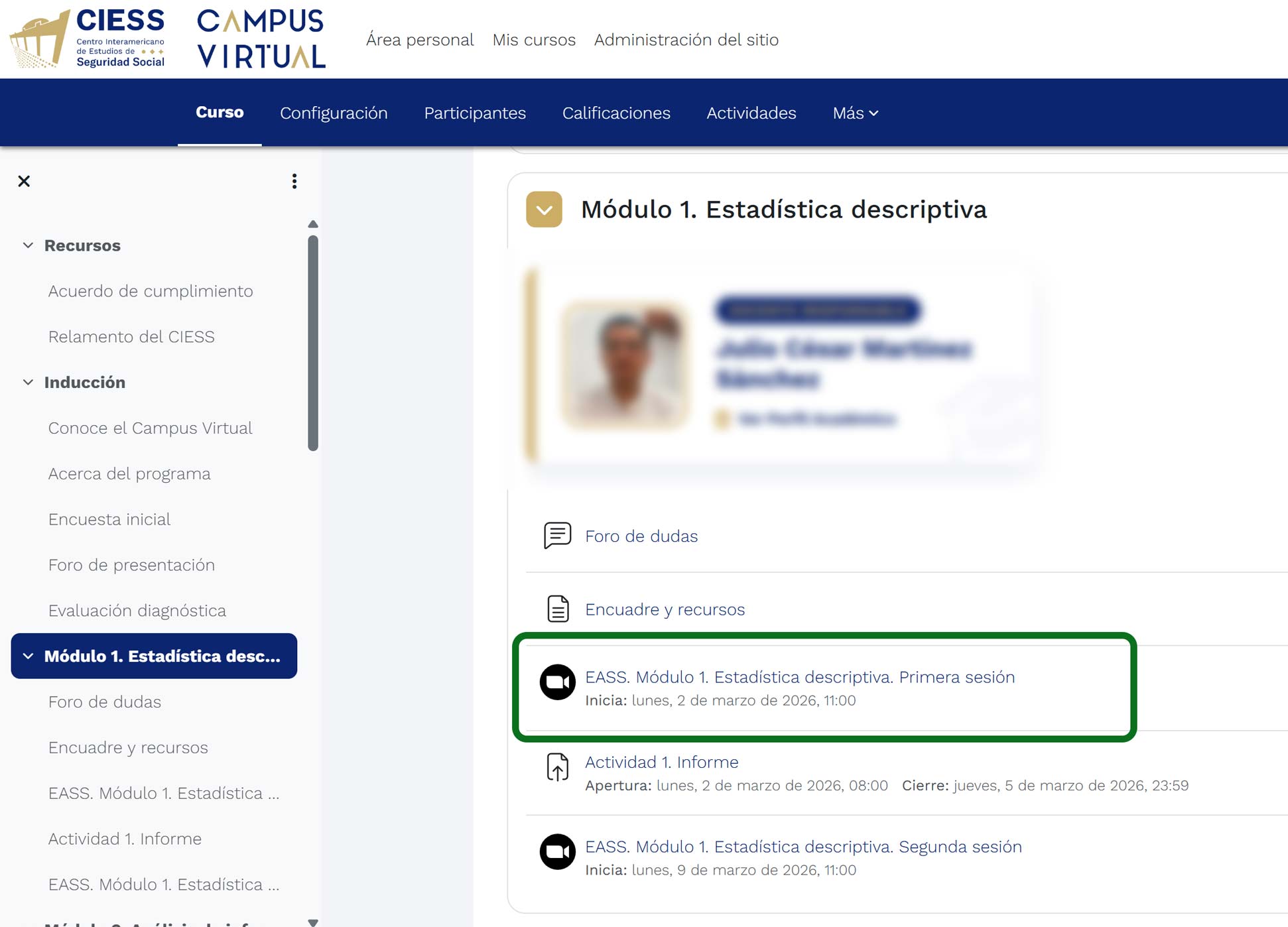
Course panel showing modules and Zoom sessions
Within the module, find the Zoom session that corresponds to your class. Click on the session name to access the details. You will see information such as the date, start time, and meeting duration.
Once on the session page, verify that it is the correct date and time. If the meeting has already started or is about to begin, you will see the "Join" button in dark blue. Click this button to access the session.
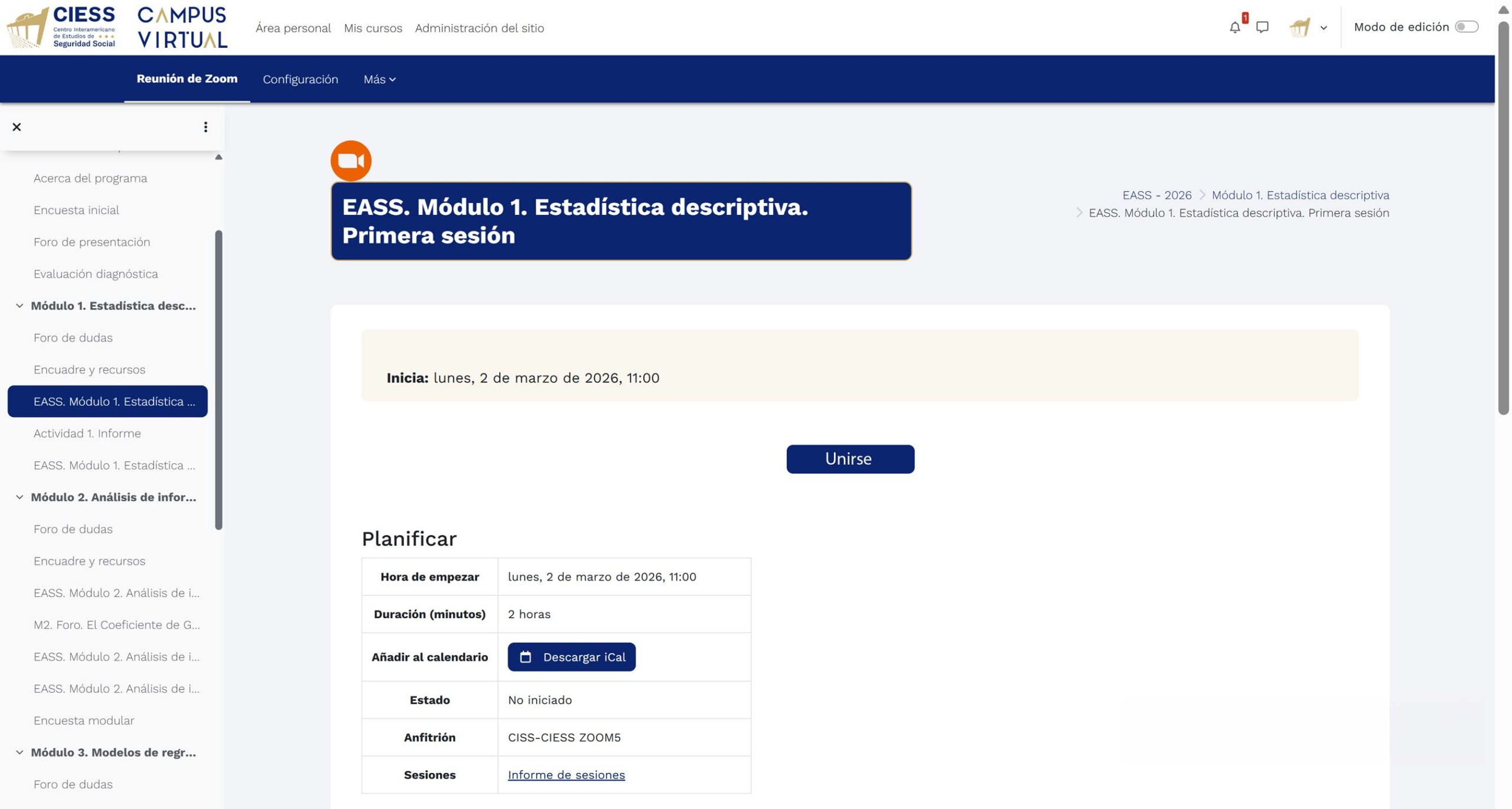
Session page with the "Join" button available
Personalized access: Access to each session is unique for each student. The system automatically loads your name and data from your Moodle account, allowing the instructor to maintain an accurate attendance record. You do not need to enter your name manually.
If you try to join before the scheduled time, instead of the "Join" button you will see the message: "Cannot join at this time. The meeting has not yet started." Wait until the indicated time to be able to access.
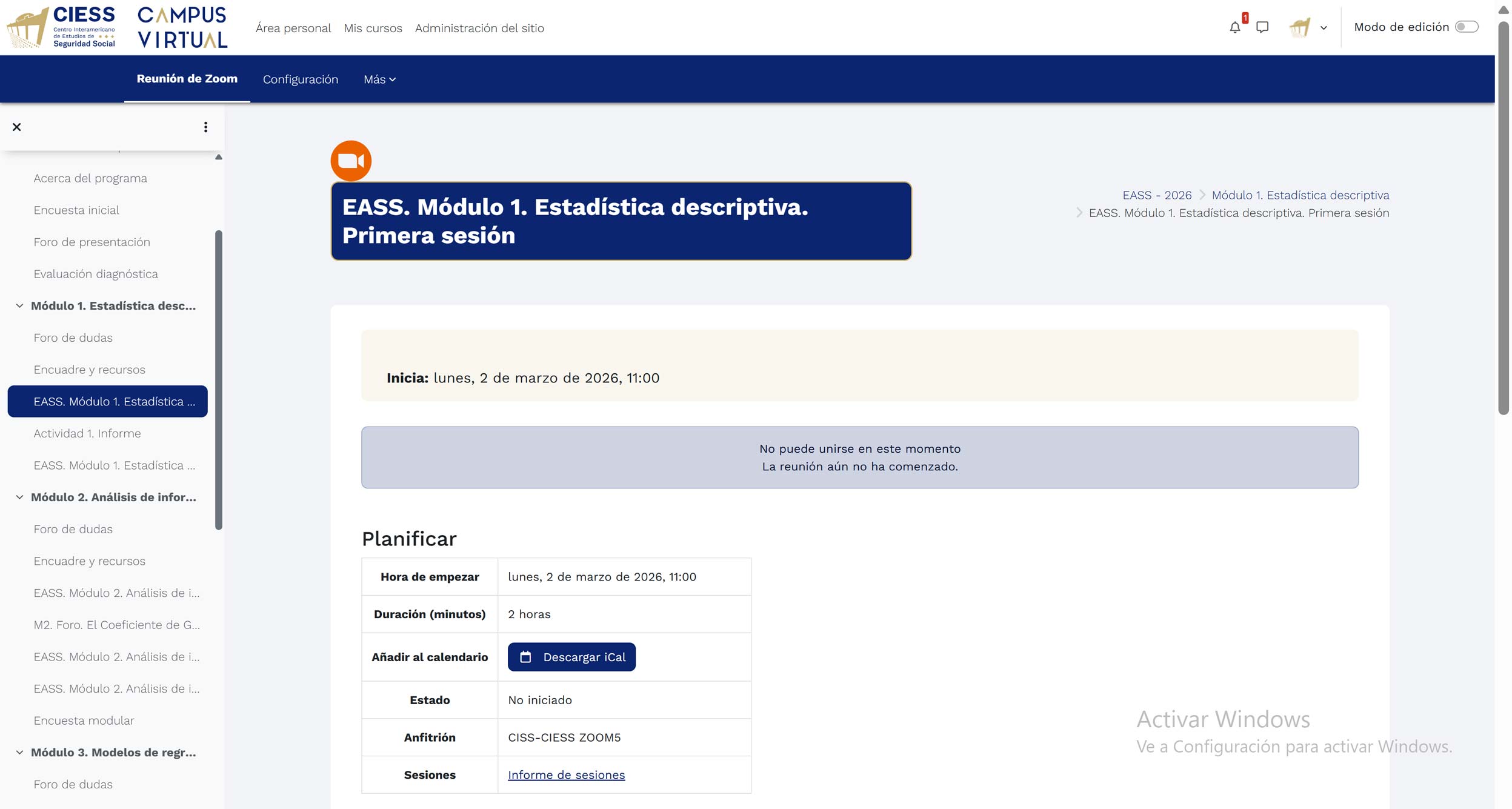
Message that appears when the meeting has not yet started
Important: Make sure you have the Zoom application installed on your device before attempting to join the session. If you do not have it, download it for free from your device's app store or from the official Zoom website.
When you click "Join", the Zoom application will open automatically and you will be directed to the session's waiting room. The instructor or moderator will admit you into the meeting. While you wait, you can verify that your camera and microphone are working correctly.
Tip: We recommend joining the session 5 to 10 minutes before the start time to resolve any technical issues and ensure everything works correctly before the class begins.
Rename Yourself in Zoom
In your Zoom meeting, click on Participants in the bottom toolbar.
Hover over your name in the participants list.
Click on More and then select Rename.
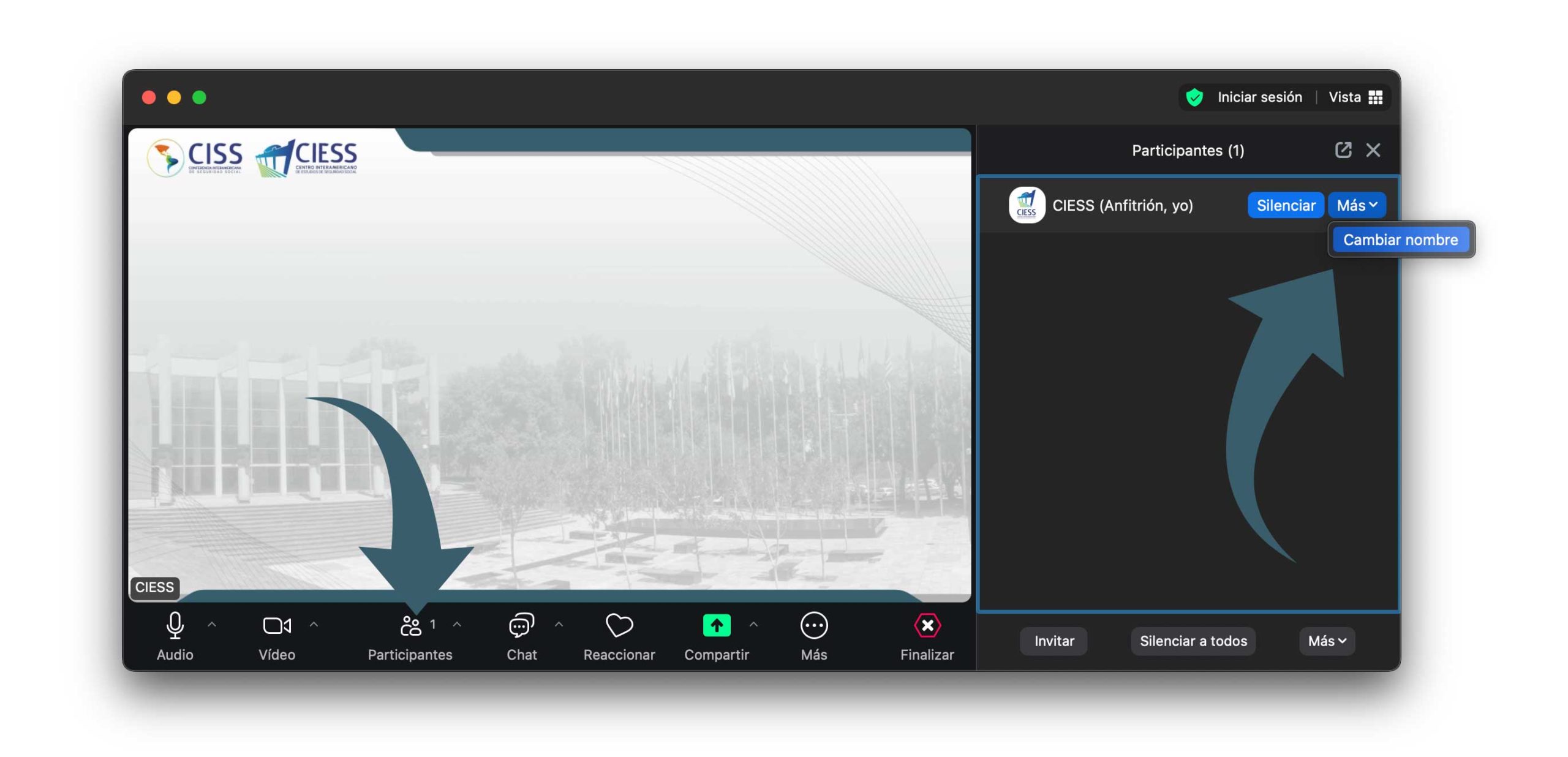
Type the name you want to display and click Rename.
Tip: Enable the option "Remember my name for future meetings" so Zoom saves your name automatically.
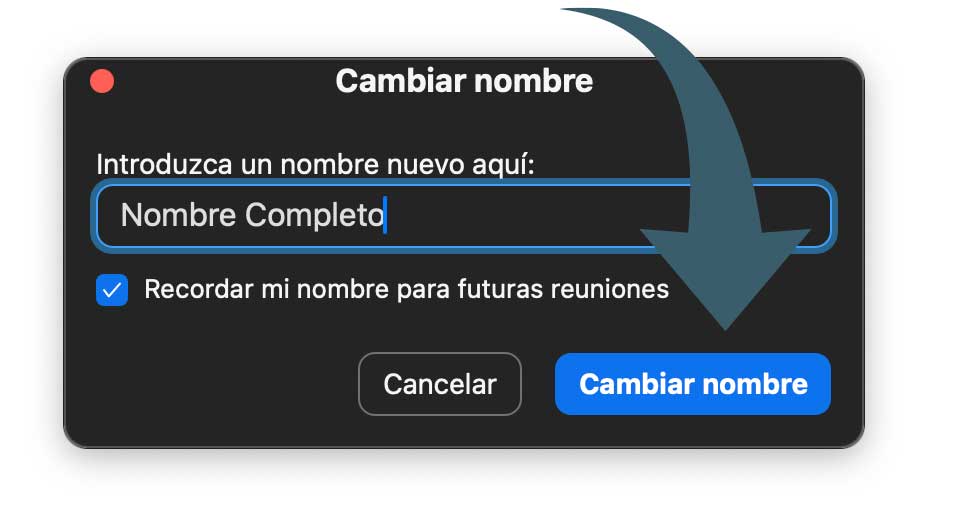
Change Interpretation Channel
During the meeting, click on Interpretation in the bottom toolbar.
In the pop-up menu, select the language you want to switch to.
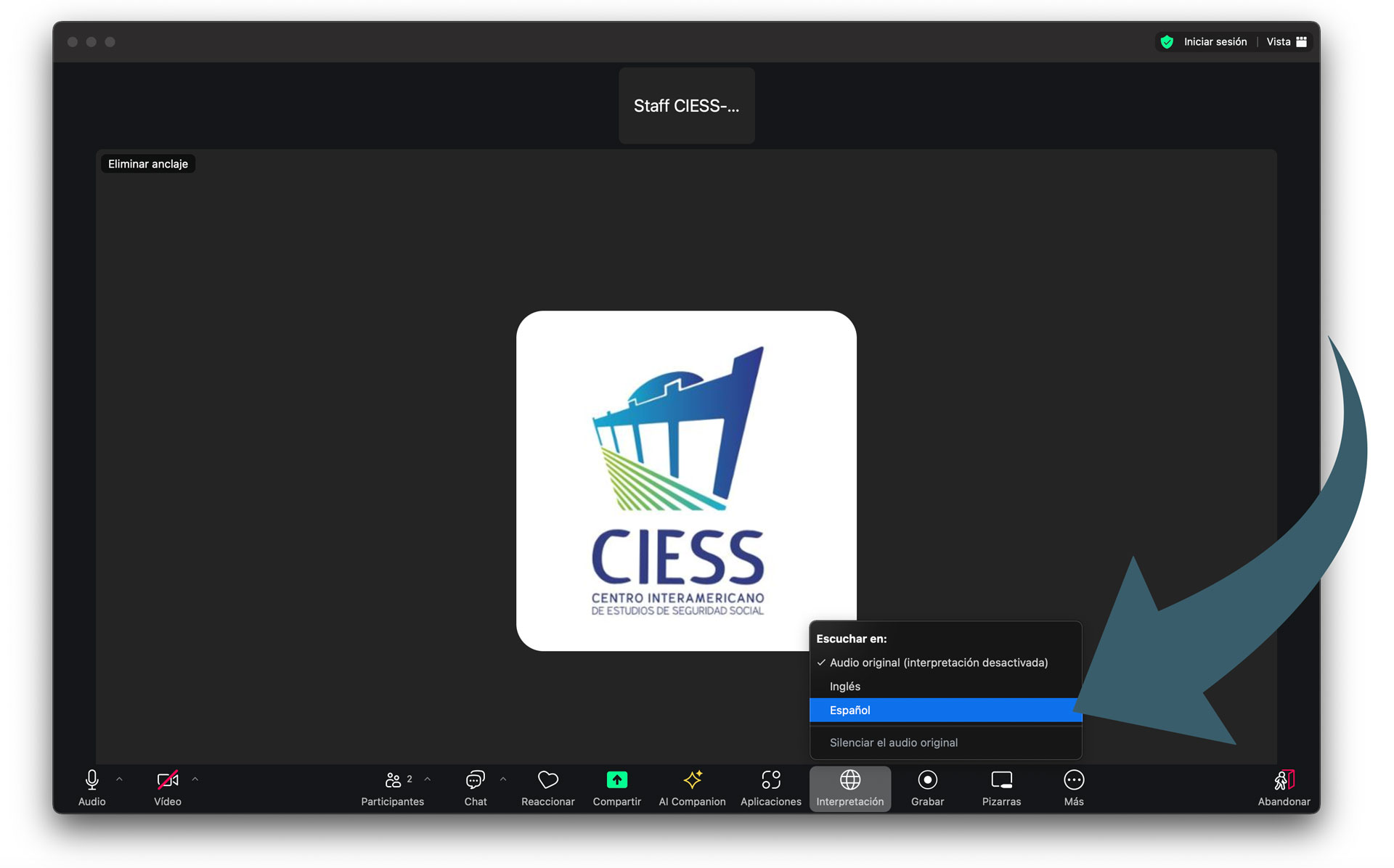
To listen only to the interpretation, check "Mute original audio".
Share Your Screen
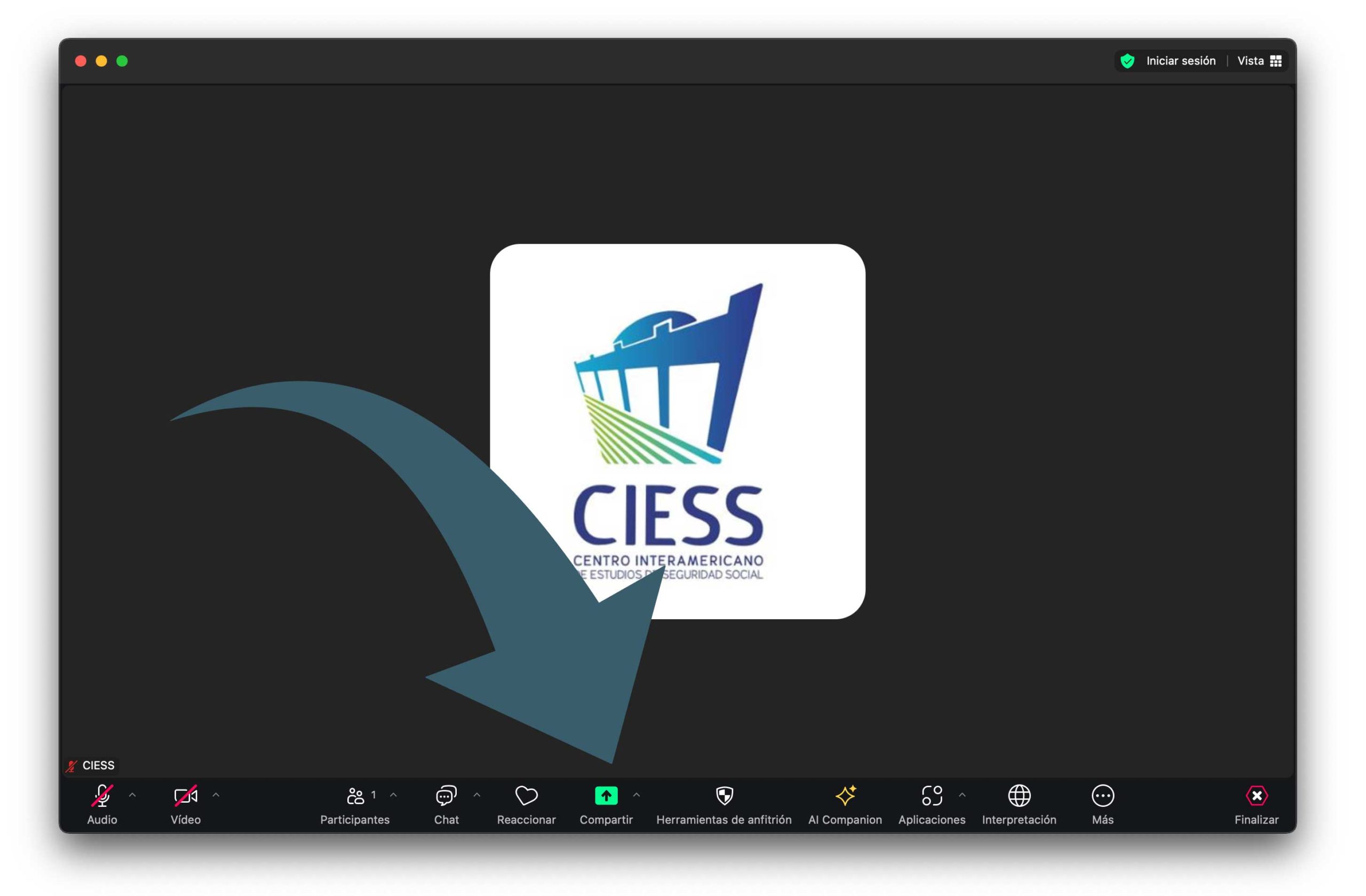
Click on Share Screen in the toolbar.
Choose the window or screen. Check Share sound if necessary.
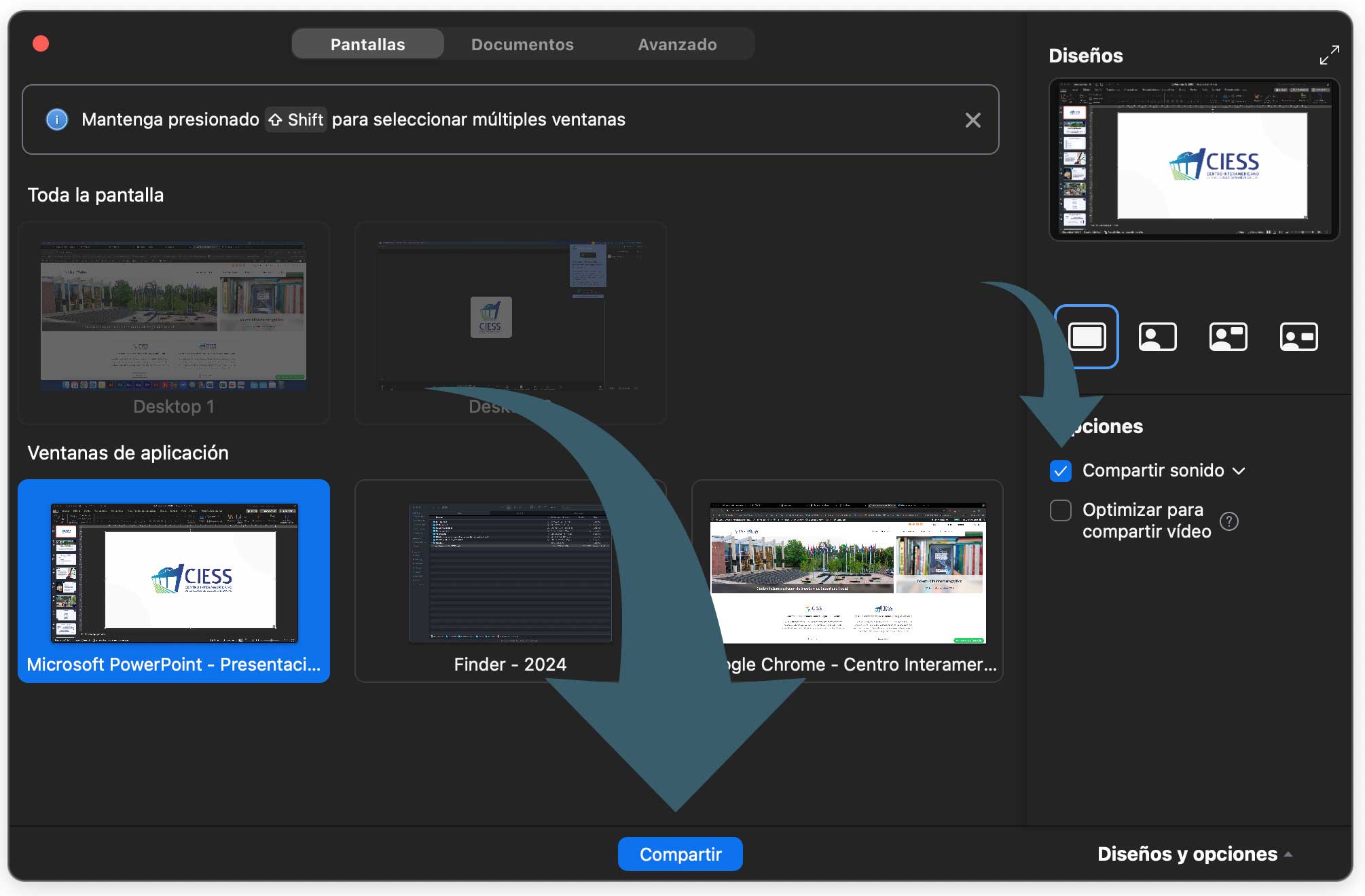
Click Share. To stop, use the red Stop Share button.

Set Up a Virtual Background
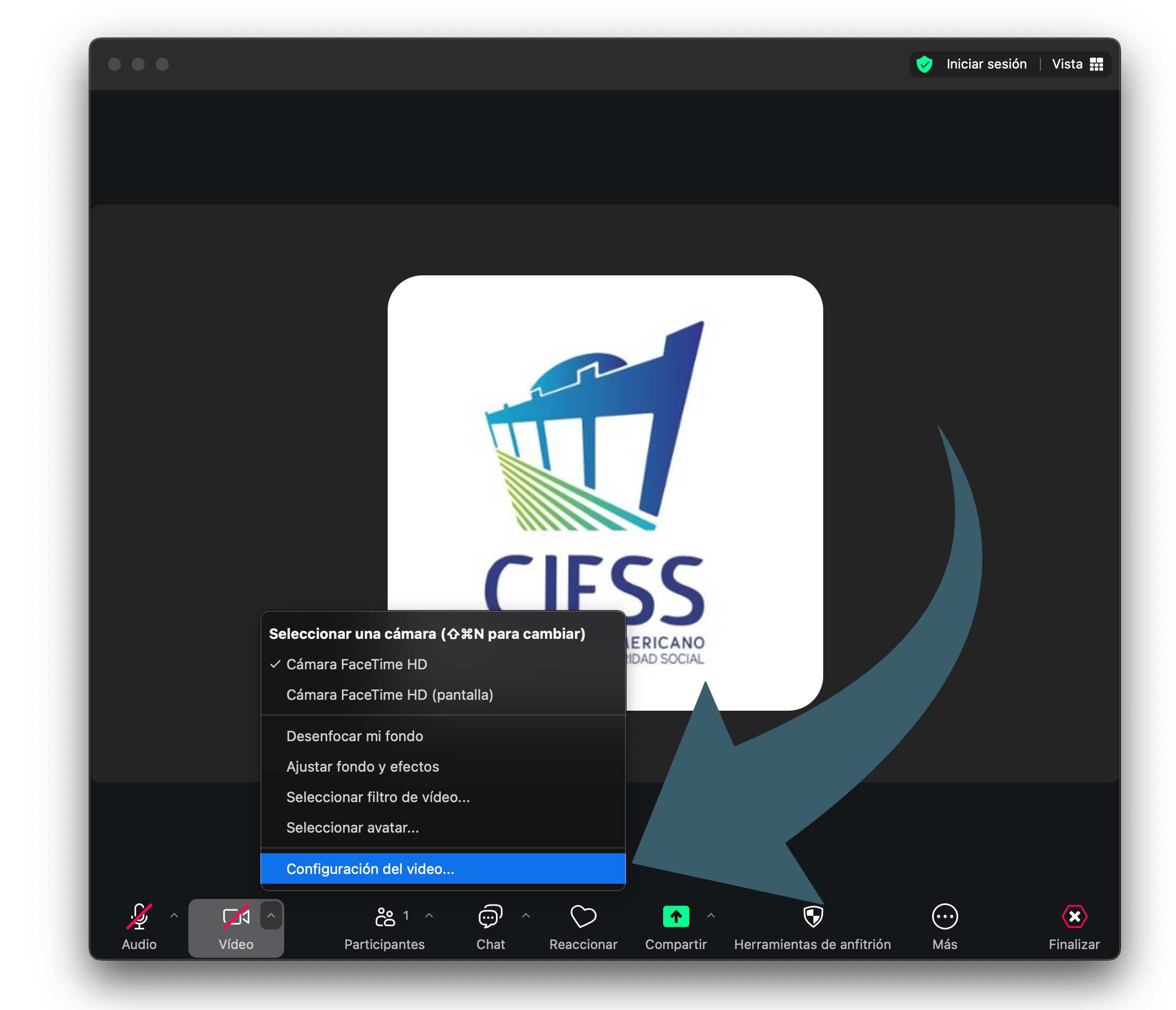
Click the arrow (^) next to the video icon and choose Video Settings.
Go to Background & Effects. Select a background or add one using the + button.
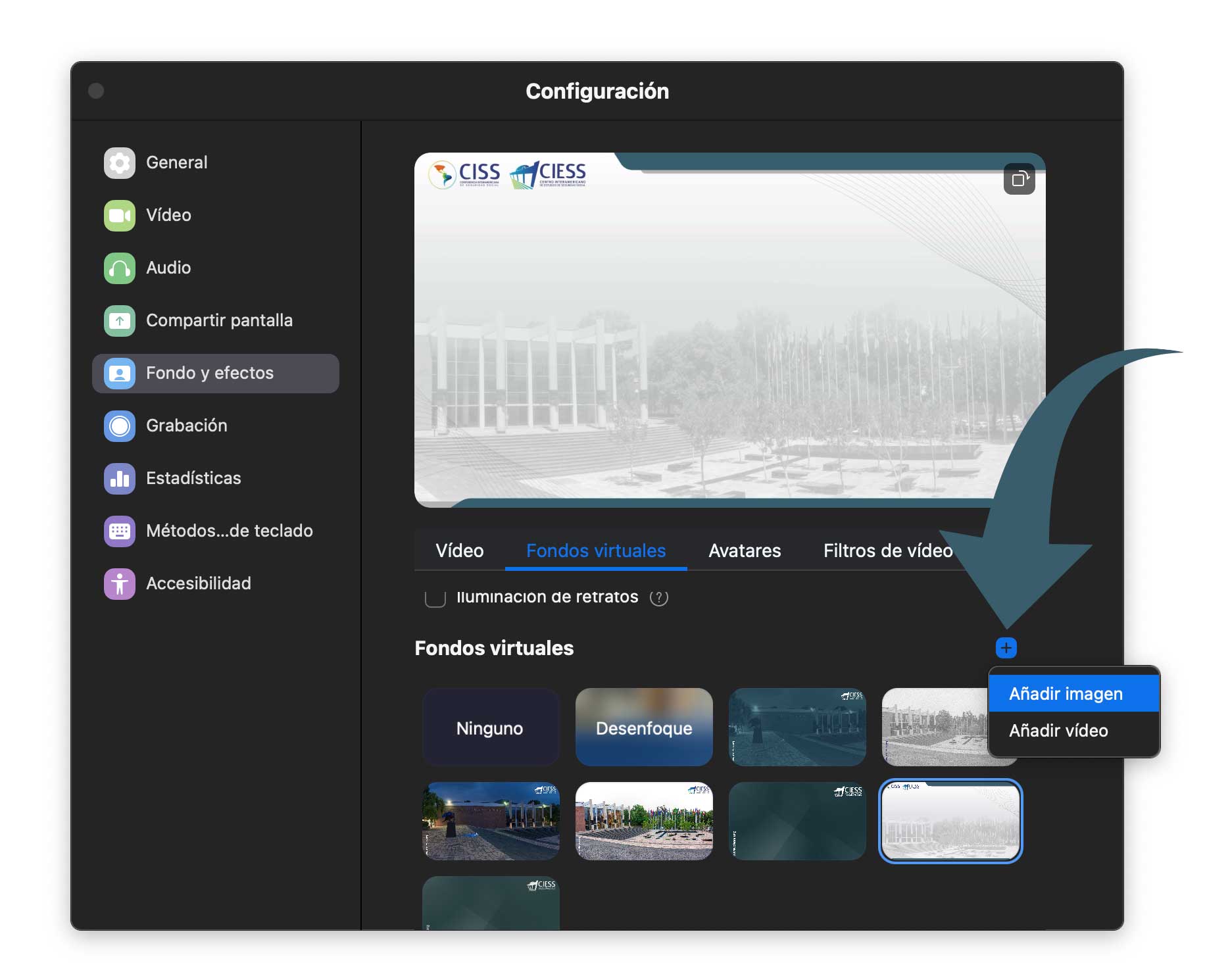
Use even lighting for a better effect.
Use the Collaborative Whiteboard
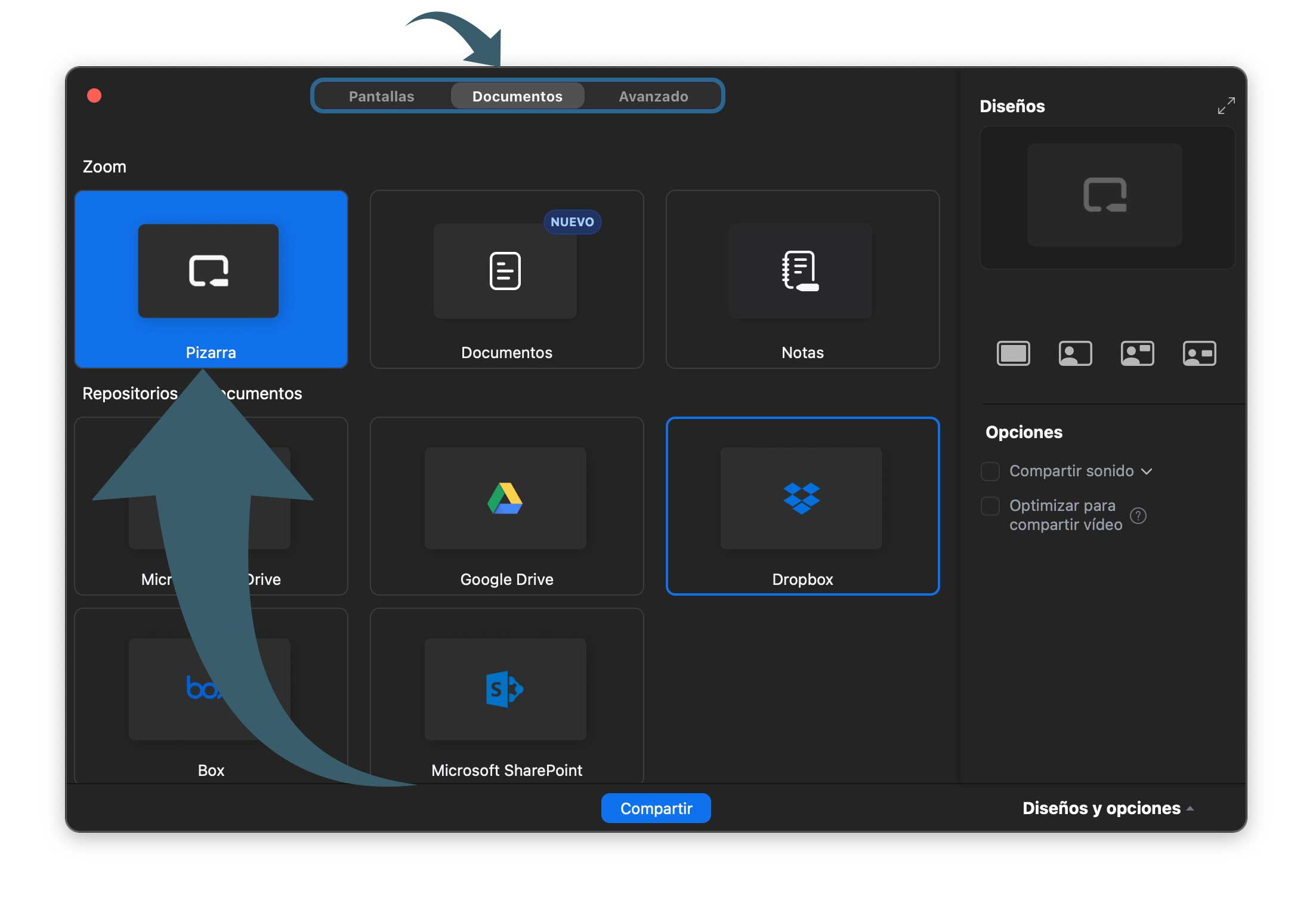
Click on Share Screen and select Whiteboard.
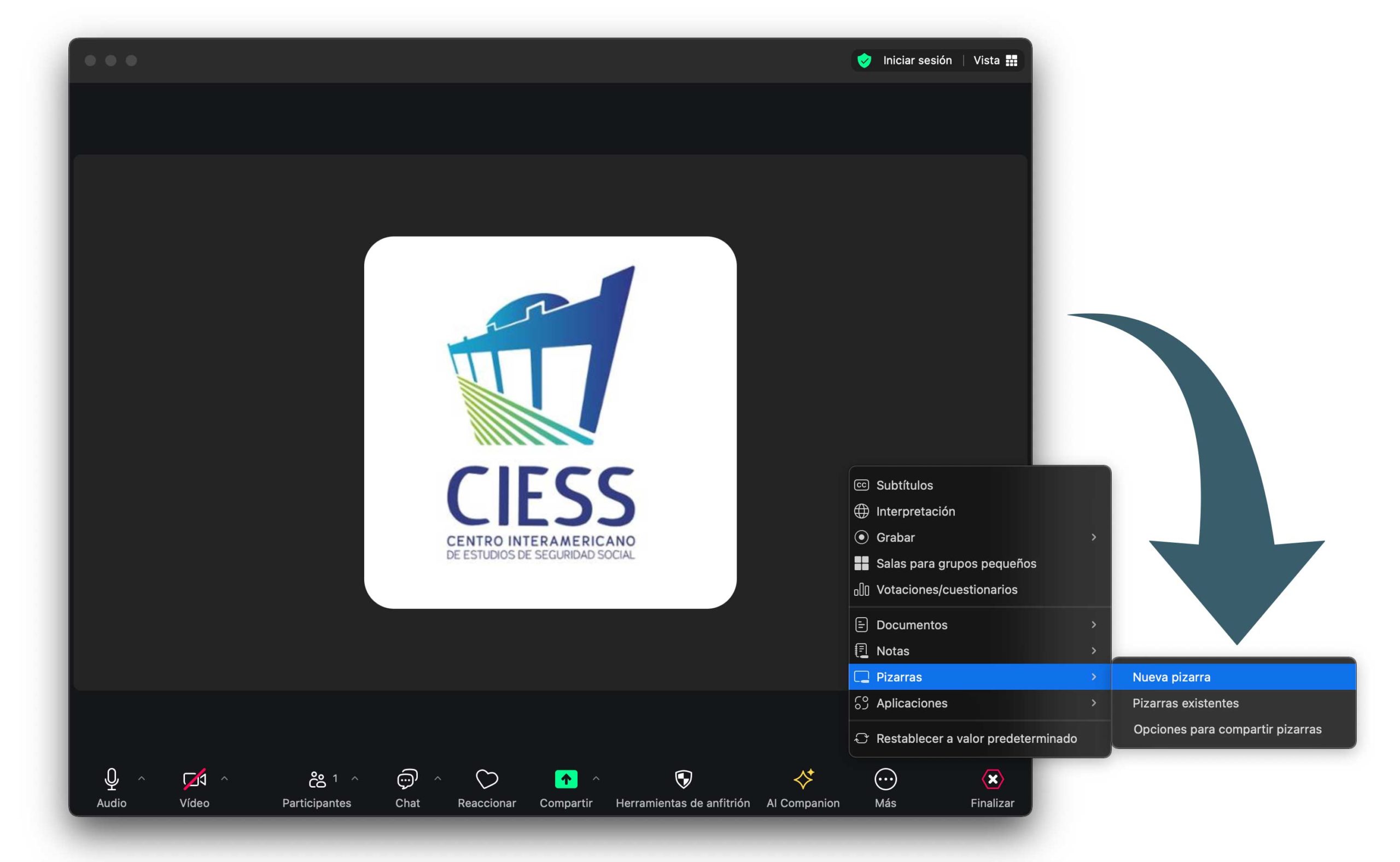
You can also access it from More > Whiteboards > New Whiteboard.
Configure Audio and Video
When joining, it will ask if you want to join with audio. Select Join with computer audio.
In the bottom left corner, you will find the Mute/Unmute and Start/Stop Video buttons.
Mute your microphone when you are not speaking to avoid noises that interrupt the class.
Raise Hand
Click the Participants button in the bottom toolbar.
At the bottom of the window that appears, find and click the Raise Hand icon.
The instructor will see a hand next to your name and will know you wish to participate.
Use the Chat
Click the Chat button in the toolbar.
Type your message in the text box and press Enter to send it.
You can choose to send the message to Everyone or to a specific person if the instructor allows it.
Change Your Name
Click the Participants button.
Hover over your name and click Rename.
Type your real first name and last name so the instructor can correctly take attendance.
Use Reactions
Click the Reactions button in the toolbar.
Select an emoji (such as a thumbs up or applause) to react without interrupting the class.
Leave the Meeting
When the class ends, click the red Leave button in the bottom right corner.
If you disconnect by mistake, click the original link again to rejoin.