How to share your screen
Click on the button with the upward arrow icon to open the screen sharing options.

Select a tab, a specific window, or choose the option to share your entire screen, depending on what you want to show.
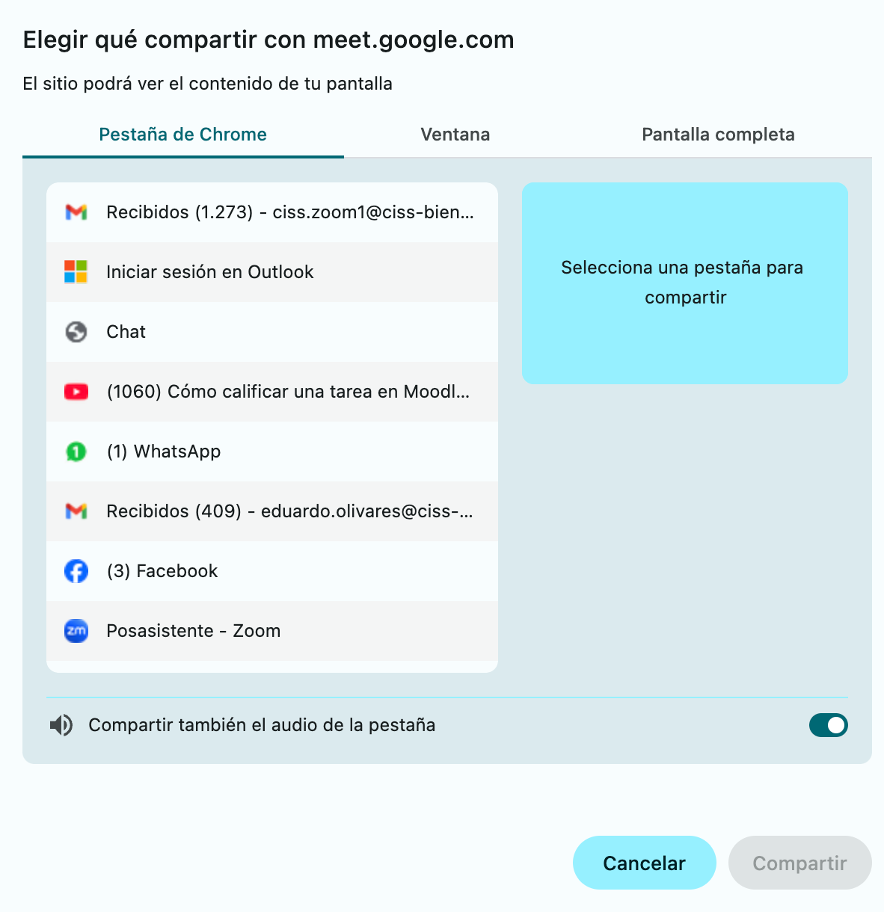
It is important to note that the option to share audio is only available when selecting a browser tab.
How to change your background
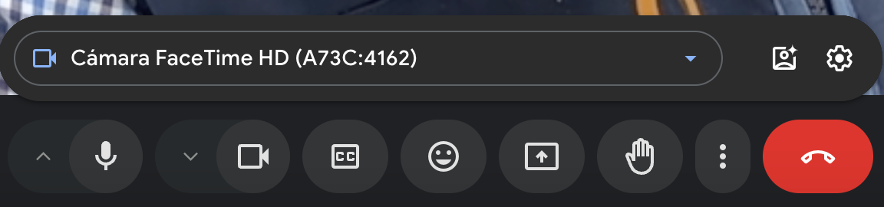
Click on the arrow next to the camera icon to open the options menu.

Select the gear icon to open settings.
Inside settings, select Video and then click Apply visual effects.
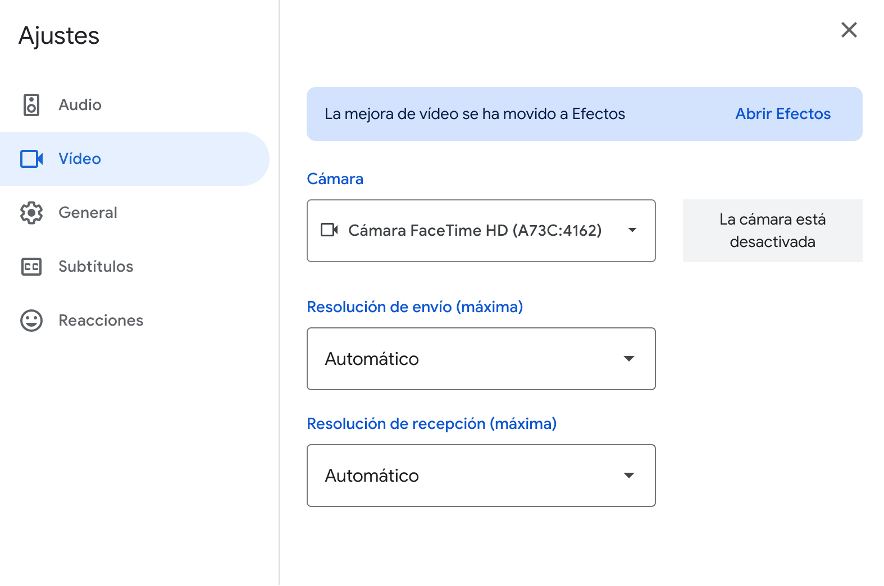
In the Blur and personal backgrounds section, click the + icon to add a custom background.
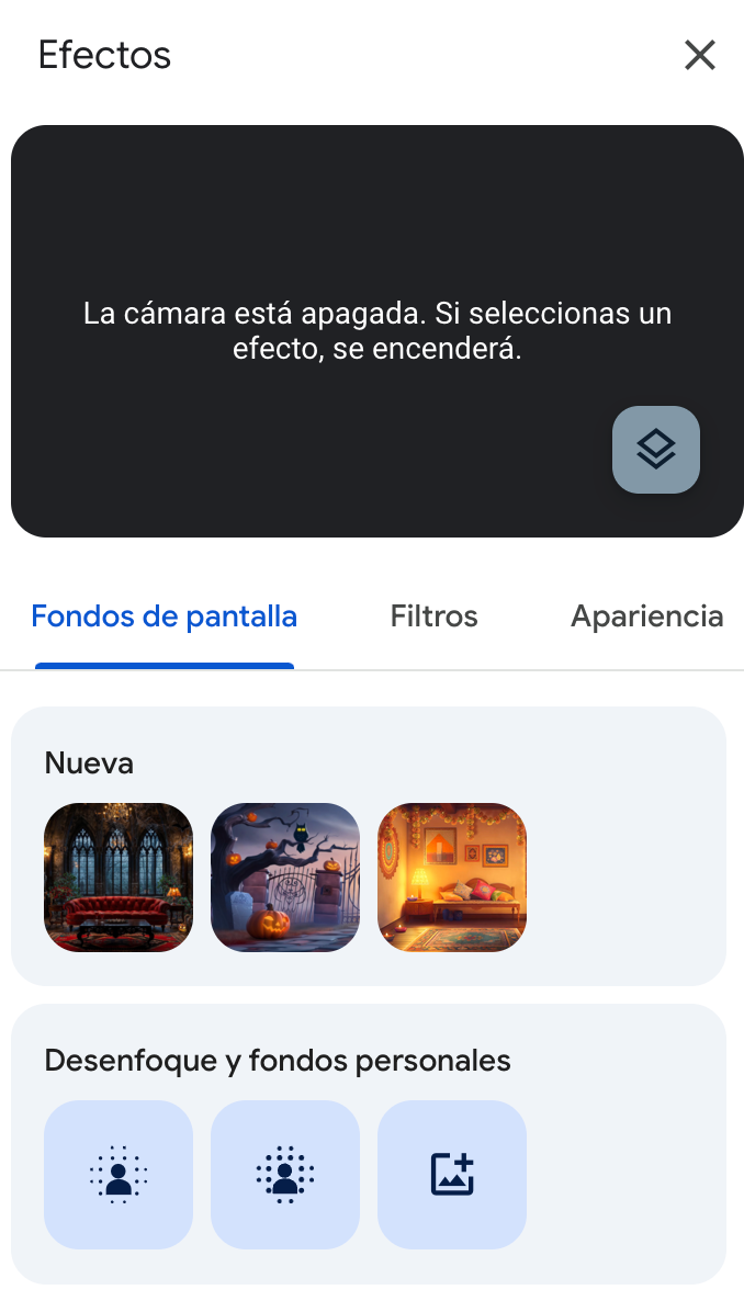
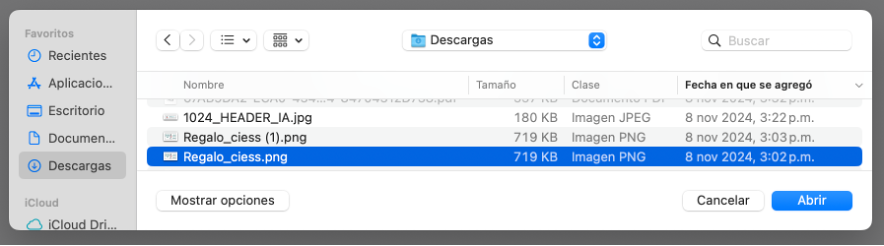
In the window that opens, select the image you wish to use as a background and confirm your choice.
How to set up breakout rooms
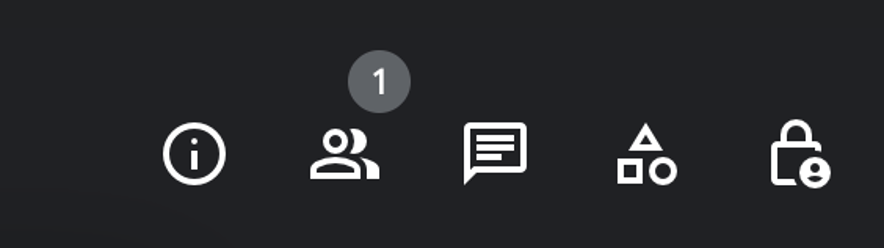
Click on the geometric shapes icon to open the breakout rooms options.
Select the Breakout rooms option from the drop-down menu.
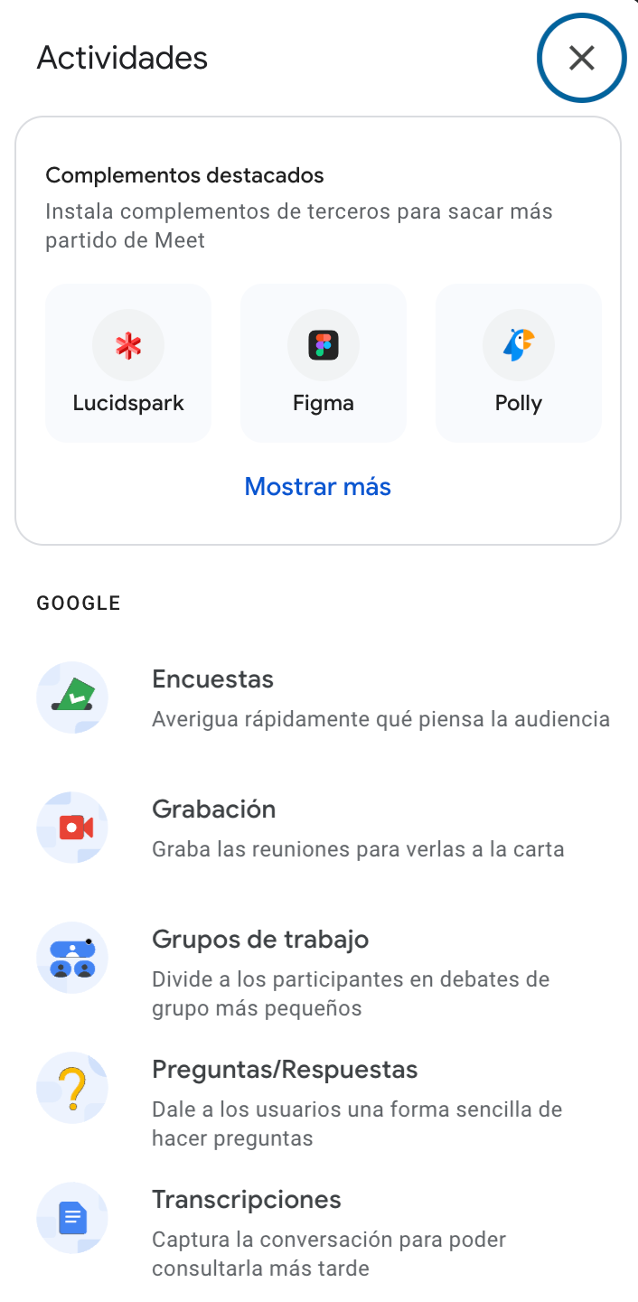
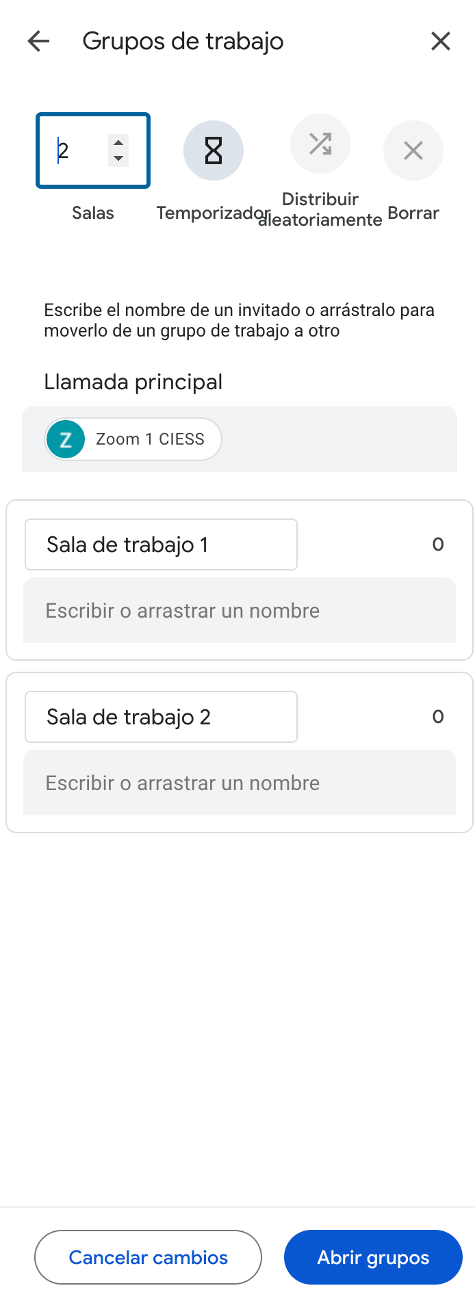
Click Set up breakout rooms to begin configuration.
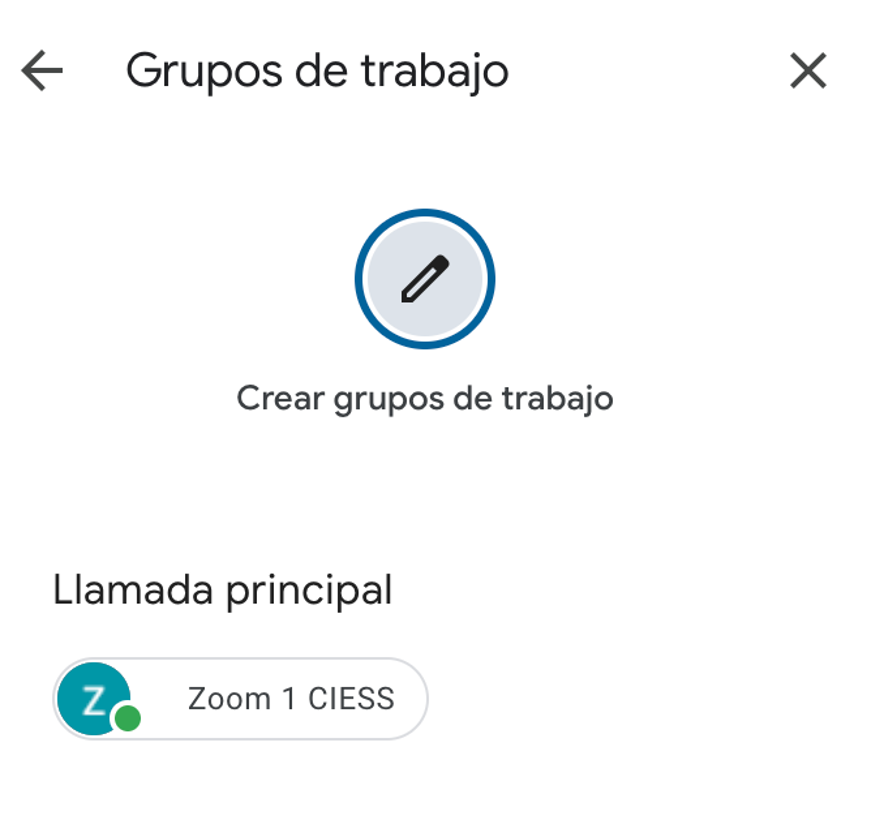
Configure the rooms (number of rooms, timer, assignments) and click Open rooms.
How to raise your hand
To ask to speak during a meeting, click on the button with the hand icon located on the toolbar.
When you do, all participants and the host will be able to see that you have raised your hand to speak.
How to start a poll
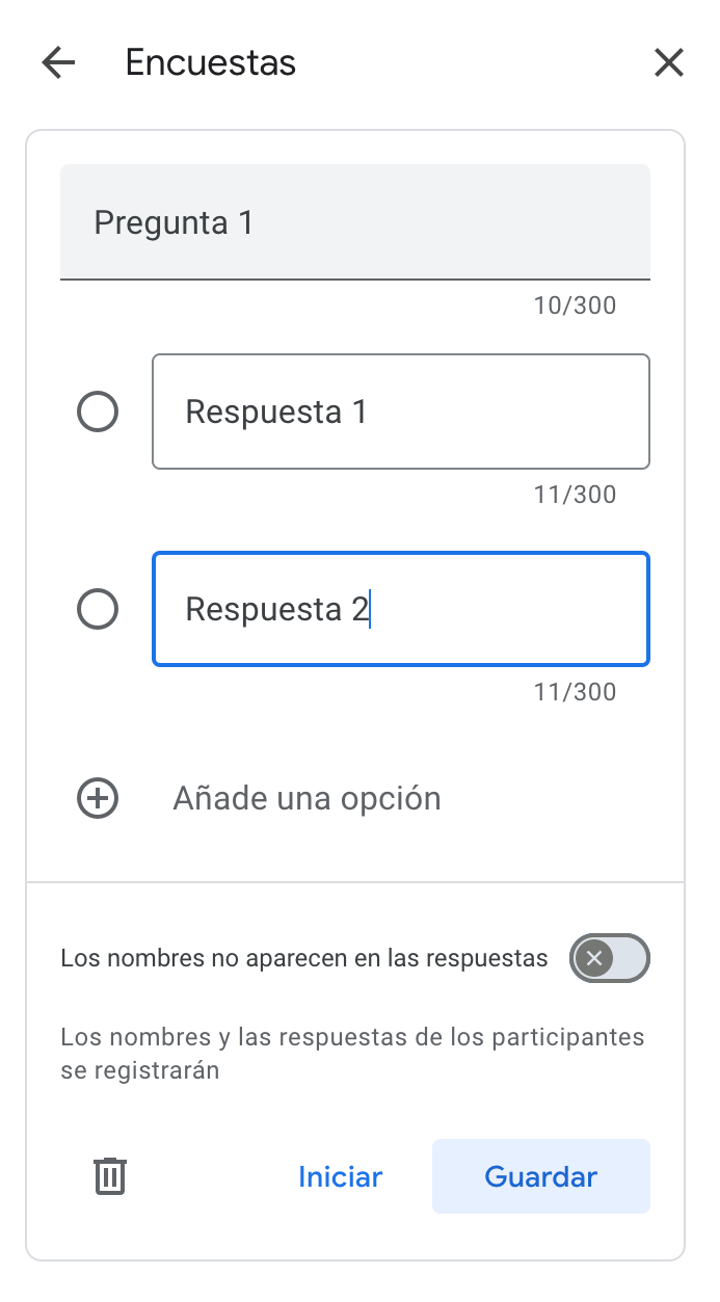
Click on the Polls button located on the toolbar.
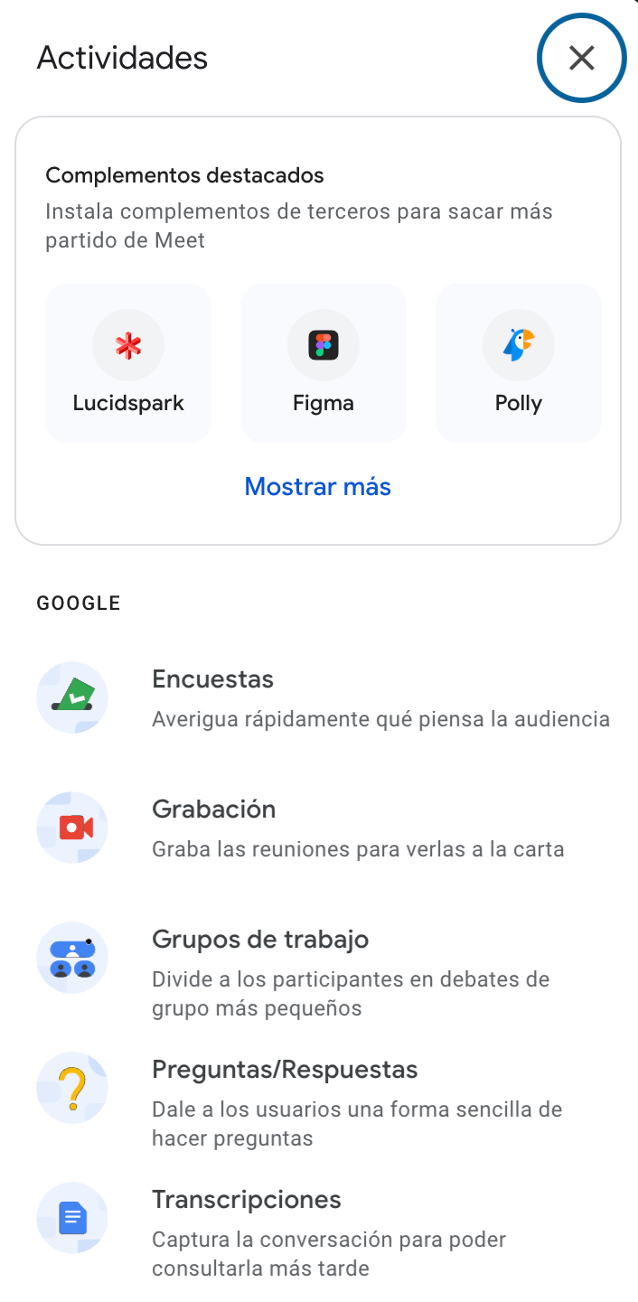
Select the Start a poll option to begin setting it up.
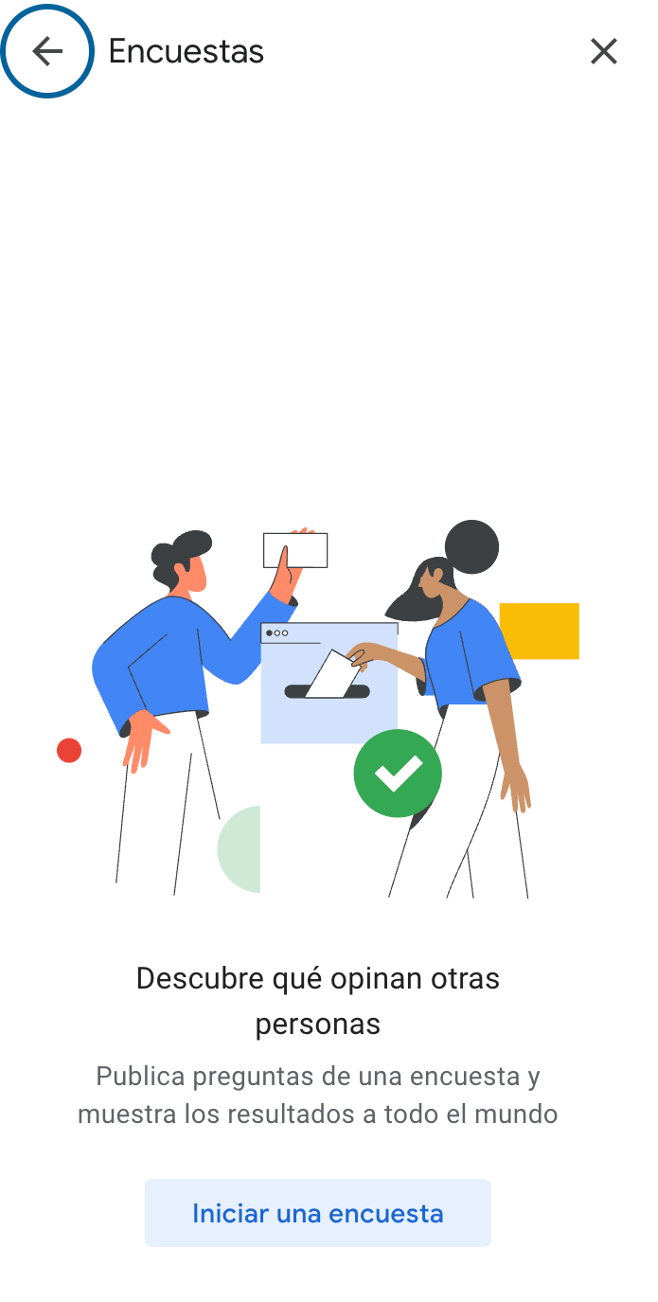
Fill out the required fields in the form, such as the title and questions, and then click Save.