How to share your screen
If your teacher asks you to, click on the button with the upward arrow icon (Present now) to open the screen sharing options.

Select a tab, a window, or choose Your entire screen, depending on what you need to show to the class.
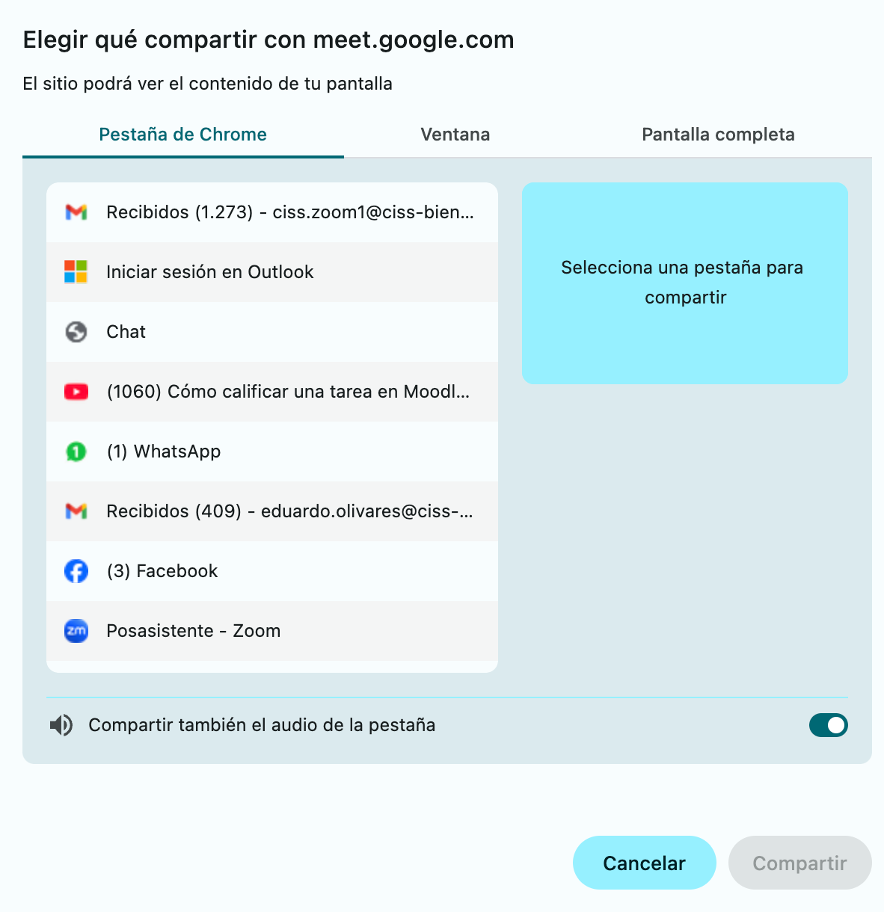
Remember that the option to share audio is only available if you select a browser tab.
How to change your background
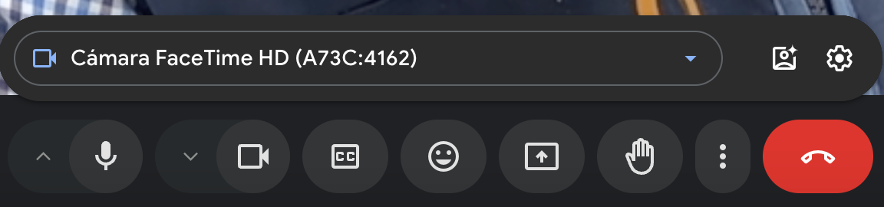
Before joining the meeting or during it, click on the arrow next to the camera icon.

Select the gear icon to go to settings.
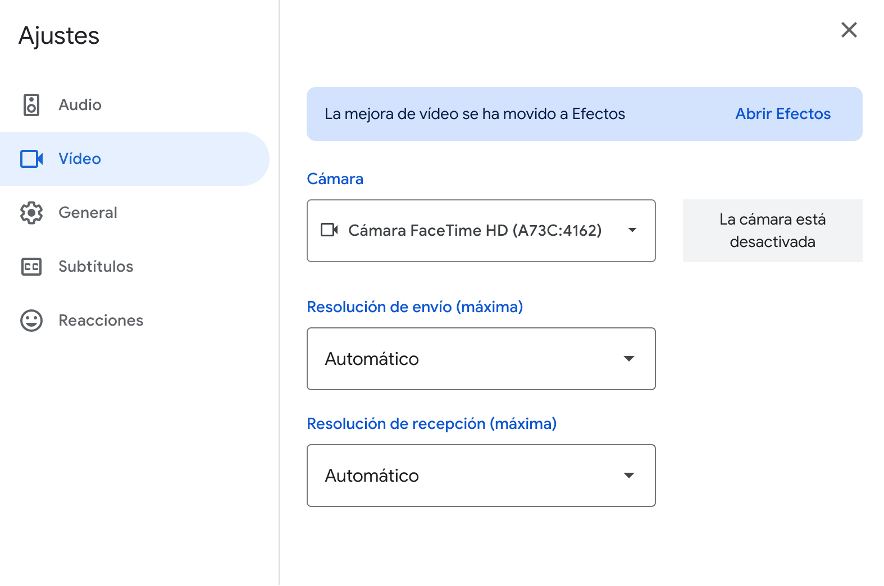
Inside settings, go to Video and click on Apply visual effects.
In the Blur and personal backgrounds section, click on the + icon to upload your own background image.
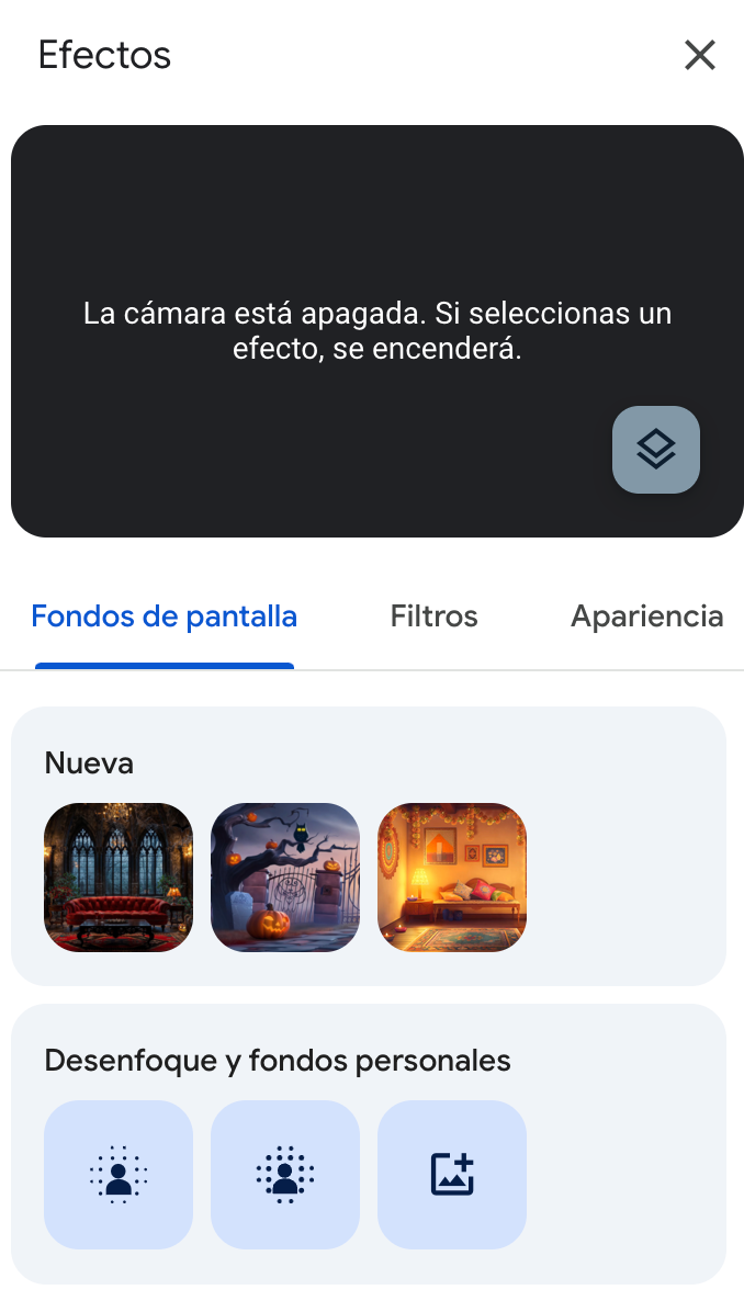
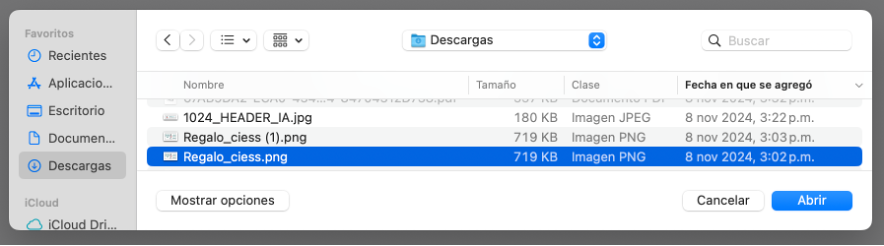
Choose the image you want as your background and you're all set.
How to join a breakout room
Wait for the notification. When your teacher opens the breakout rooms, a prompt will appear on your screen for you to join.
Click on the blue button that says Join.
You will be moved automatically to your group room, where you can work with your classmates.
Please note! When the teacher closes the rooms, you will receive another notification to return to the main meeting. Simply click on Return to main call.
How to raise your hand
If you want to ask a question or participate, click on the button with the hand icon on the toolbar.
Your teacher and classmates will see that you have raised your hand. When it's your turn to speak, click the same button again to lower it.
How to respond to a poll
When your teacher starts a poll, it will appear in a window at the top of your screen.
Read the question and select one of the options presented to you.
Once you are sure of your answer, click on the Submit button. That's it!